About the Server Time Forex Indicator
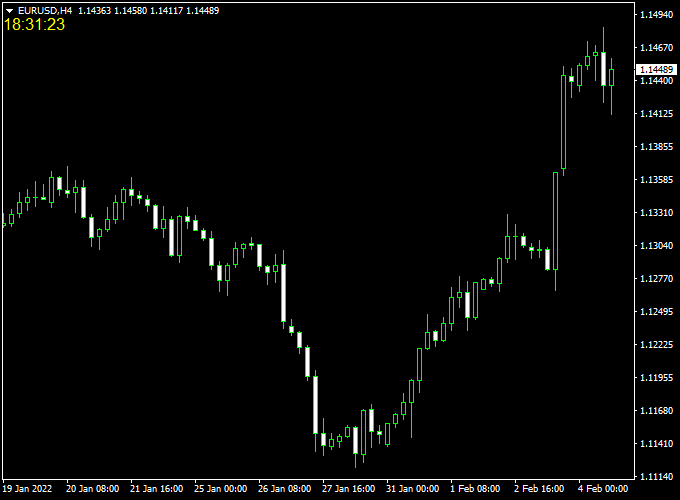
The indicator for Metatrader 4 displays the actual server time in the upper left part of the main chart.
This is a vital asset for those who trade the daily close or use time-specific strategies like news trading or session breakouts.
The indicator works for any broker of your preference, regardless of their geographical location or daylight savings adjustments.
It is an essential addition for any trader who values chart organization and operational efficiency.
Free Download
Download the “ServerTime.mq4” indicator for MT4
Key Features
- It displays the live server clock in a high-visibility format on the main price chart.
- The indicator automatically synchronizes with the data feed provided by your specific broker.
- The tool is compatible with all trading instruments, including forex, metals, and indices.
- It helps traders track the exact countdown to the close of the current candlestick.
- The interface is discreet and placed to avoid covering up critical price action or labels.
- The lightweight code ensures that the clock remains accurate without impacting terminal performance.
Indicator Chart
The Server Time Forex indicator chart features a live digital clock located in the top corner of the screen.
Unlike price-based indicators, this tool does not draw lines or arrows but provides a continuous update of the broker’s time.
By watching the server time, a trader can anticipate exactly when high-impact news will be released or when a trading session is about to overlap with another.

Guide to Trade with Server Time Forex Indicator
Trading with this tool is about using temporal data to improve the timing of your entries and exits relative to market sessions.
Buy Rules
- Monitor the server clock to identify the start of the London or New York sessions.
- Look for a bullish momentum shift to occur exactly as the market volume increases.
- Open a buy trade when the clock confirms the market is in a peak activity period.
- Verify the signal by ensuring a candle has closed above a key support level at the session start.
Sell Rules
- Check the server time to ensure you are not trading during the low-liquidity rollover period.
- Identify a bearish rejection on the chart during a major session overlap.
- Open a sell trade when the indicator shows the market is approaching a historical high-volume time.
- Confirm the entry by waiting for the server time to mark the close of a bearish hourly candle.
Stop Loss
- Position your protective stop slightly below the recent swing low on the main chart.
- For sell orders, place the stop loss a few pips above the most recent swing high.
- Ensure your stop loss accounts for potential spread widening during late-night server hours.
- Keep your risk settings fixed to maintain a consistent approach to market volatility.
Take Profit
- Exit the trade before the server time reaches the daily market close or weekend break.
- Secure your gains at a fixed reward ratio that aligns with your specific strategy.
- Consider closing positions when the server clock shows the end of the New York session.
- Target the nearest horizontal support or resistance level for a clean profit target.
XTC Forex Trend + Server Time Indicator MT4 Strategy
The XTC Forex Trend + Server Time Indicator MT4 strategy is a straightforward yet highly effective setup designed for traders seeking accurate timing and strong directional confirmation.
It combines the XTC Forex Trend Indicator, which displays market momentum through color-coded histogram bars, with the Server Time Forex Indicator, which shows the broker’s exact server time directly on the chart.
This strategy works best for traders who scalp or day trade during the most active sessions, such as the London and New York overlaps.
Knowing the correct server time ensures that you enter trades at the right moment, especially when major economic news is released or when liquidity spikes.
The XTC Forex Trend Indicator then confirms the direction of the move with precise buy and sell signals.
Buy Entry Rules
- Check the Server Time Indicator to confirm that you are trading within active market hours (London or New York session).
- Wait for the first blue histogram bar to appear on the XTC Forex Trend Indicator.
- Enter a buy trade at the close of the first blue bar.
- Place a stop loss just below the recent swing low or 15–20 pips, depending on volatility.
- Take profit when the histogram turns neutral or red, or after reaching 25–40 pips.
Sell Entry Rules
- Check that the current server time matches a high-liquidity session to avoid false signals.
- Wait for the first red histogram bar to appear on the XTC Forex Trend Indicator.
- Enter a sell trade at the close of that red bar.
- Set a stop loss just above the recent swing high or 15–20 pips.
- Take profit when the histogram turns neutral or blue, or after 25–40 pips of gain.
Advantages
- Combines time awareness with real trend direction for better decision-making.
- A clear visual histogram makes it easy to spot trend shifts instantly.
- Works well on M5, M15, and M30 charts for intraday trading.
- Helps avoid trading during low liquidity hours thanks to the time indicator.
- Minimal chart setup with no complex parameters to configure.
Drawbacks
- Dependence on active session timing limits opportunities outside main hours.
- The Server Time Indicator itself does not provide trading signals—it only supports timing awareness.
- Traders must remain alert to avoid missing quick intraday entries and exits.
Case Study 1: EURUSD London Open
At 08:00 server time, the London session opened with increased volatility.
The Server Time Indicator confirmed the active trading window.
The XTC Forex Trend Indicator displayed a blue histogram bar at 1.0850.
A buy trade was taken with a 15-pip stop loss.
Within 45 minutes, the price reached 1.0880 for a 30-pip profit.
Case Study 2: USDJPY New York Session
During the New York session around 14:00 server time, USDJPY printed a red histogram bar at 150.80.
A sell order was placed with a stop loss at 151.00.
The price dropped steadily to 150.40 within an hour, closing the trade with a 40-pip profit.
Strategy Tips
- Trade only during the main sessions when spreads are tight and movement is stronger.
- Use the Server Time Indicator to confirm whether you’re within those peak hours before opening any position.
- Combine this setup with basic support and resistance zones for extra confirmation.
- Reduce position size during overlapping news releases to control risk.
- Backtest the strategy across different pairs to identify those most responsive to trend momentum.
Download Now
Download the “ServerTime.mq4” indicator for Metatrader 4
FAQ
Why is server time different from my local computer time?
Most forex brokers set their servers to GMT+2 or GMT+3 to ensure the daily candle closes at the same time as the New York session ends.
This helps in maintaining consistent price action patterns across the globe.
The Server Time indicator bridges this gap by showing you exactly what the broker sees, which is essential for following technical strategies that rely on specific candle close times.
Does this indicator work on all brokers?
Yes, the Server Time indicator is universal.
It is designed to read the internal timestamp of whatever broker you are currently logged into.
Whether your broker is based in Europe, Asia, or the Americas, the indicator will instantly adjust to display the correct data without requiring any manual configuration or time zone offsets.
Can I change the font size or color of the clock?
The indicator is built to be as simple as possible, but you can usually adjust the color and size through the indicator settings.
This allows you to make the clock stand out against your specific chart background, whether you prefer a dark mode or a light mode template.
This ensures that the time is always readable during fast-moving market conditions.
Summary
The Server Time for MT4 is an effective utility tool that assists in determining the appropriate timing for market entries.
By providing a constant reference to the broker’s clock, it helps you avoid the common mistake of trading during low-liquidity gaps or entering right before a session close.
This tool helps traders maintain a disciplined routine by highlighting exactly when the most volatile periods of the day are occurring.
Using this indicator allows you to filter high-risk trades that are taken outside of primary market hours.